How to Attach AWC Stylesheet to an Object
Knowledge Base Article | April 16, 2025
Summary
This article explains how to attach a custom Active Workspace (AWC) stylesheet to an object. It guides users through saving an existing RAC stylesheet, editing it in the AWC viewer, and applying it to a custom Item so that the new layout appears when creating the object in AWC.
Key Topics Covered
-
Saving an existing RAC stylesheet for customization
-
Opening and editing the stylesheet in AWC viewer
-
Assigning custom Item type and stylesheet type
-
Setting property names and applying changes
-
Verifying the custom stylesheet in AWC creation workflow
Introduction
For this example, I am going to use OOTB stylesheet and customize it to create my custom Item in AWC.
STEP 1: General Search in RAC
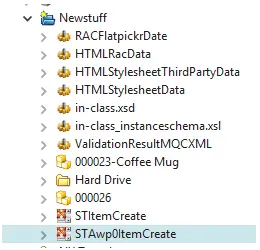
First, let do a general search in RAC and search for AWP0Itemcreate then save as to save the stylesheet as different name in newstuff folder. I will save as STAwp0ItemCreate for this example.

STEP 2: Open the New Stylesheet File in Viewer Tab
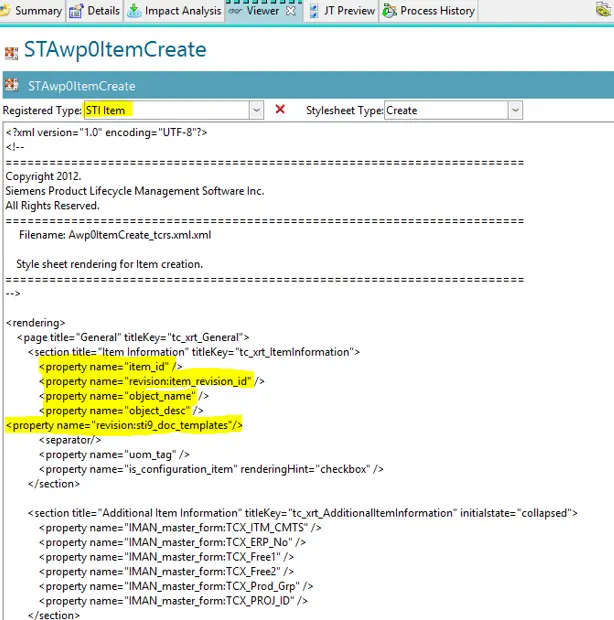
Next, I am going to open the new Stylesheet file in viewer tab.
I select the STI Item as the registered type (STI Item is my custom Item) and stylesheet type as create (because I want to use this stylesheet to show the create page in AWC).
Also, make sure you fill out the correct property name for the custom Item. (make sure you click apply on the bottom right of the viewer window)
Result:
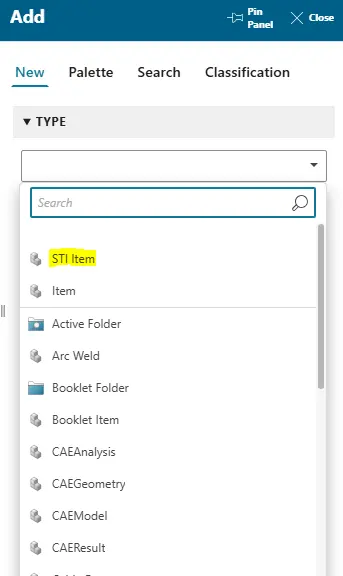
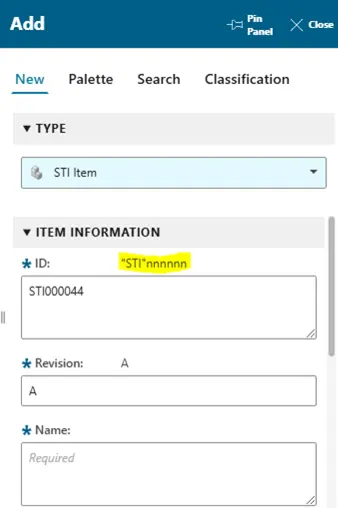
So when I select add STI Item in AWC it will show the new stylesheet that I just created above.