

Assembly Relationships in Solid Edge: Rules, Types & Best Practices
Blog Article | October 30, 2026
Summary
This guide explains how assembly relationships in Solid Edge control the position, alignment, movement, and behavior of parts and subassemblies. It covers core relationship types such as Mate, Planar Align, Axial Align, Angle, Tangent, Insert, Ground, and other specialized relationships, along with workflows including FlashFit, Traditional, Reduced Steps, and Capture Fit. The article also explains how to manage relationships in Assembly PathFinder, avoid over-constraining assemblies, use offsets correctly, preserve design intent, and efficiently place repeated components with Pattern, Duplicate Component, Clone Component, and Capture Fit. Best practices for large assemblies, imported assemblies, troubleshooting conflicts, and maintaining stable, editable assembly structures are also included. Pasted text
Key Topics Covered
- How assembly relationships in Solid Edge control part positioning, alignment, movement, and design intent
- Using Mate, Planar Align, Axial Align, and other relationship types for common assembly positioning tasks
- Choosing between FlashFit, Traditional, Reduced Steps, and Capture Fit assembly workflows
- Managing and troubleshooting assembly relationships with Assembly PathFinder and Assembly Relationships Manager
- Using Clone Component, Duplicate Component, Pattern, and Capture Fit for repeated component placement
- Best practices for avoiding over-constraints and building stable, editable Solid Edge assemblies
- Improving imported and large assembly workflows with relationship tools, reusable placement logic, and better geometry selection
Understanding Assembly Relationships
Assembly relationships are fundamental to successfully creating assemblies in Solid Edge. When you place a part or subassembly into an assembly, you define how that component is positioned in relation to the other parts by applying assembly relationships.
These relationships control how components fit together, align, rotate, move, or remain fixed. For example, an assembly relationship can keep two faces aligned, position a bolt in a hole, define an angle between parts, or allow a shaft to rotate around an axis.
Solid Edge includes a wide range of assembly relationships, including Mate, Planar Align, Axial Align, Insert, Connect, Angle, Tangent, Cam, Path, Parallel, Gear, Match Coordinate System, Center-Plane, Rigid Set, and Ground. It also includes productivity-focused workflows such as FlashFit, Reduced Steps, and Capture Fit that can reduce the manual effort required to position components. Solid Edge also provides tools for efficiently repeating components within an assembly. Depending on the desired result, users can pattern, duplicate, or clone components rather than placing each occurrence individually.
When used correctly, assembly relationships do more than make parts look correct on screen. They help preserve design intent, improve accuracy, reduce placement errors, and make assemblies easier to edit as the design evolves.
Core Concepts of Assembly Relationships
Before working with individual assembly relationship types, it is important to understand the basic rules that control how relationships are created and maintained in Solid Edge. The geometry you select, the order in which relationships are applied, and the amount of movement you allow all affect how a component behaves within the assembly. Building relationships around the part’s real function helps create assemblies that are more stable, easier to edit, and more likely to update correctly as the design changes.
Rules & Selection Guidelines
In Solid Edge, assembly relationships are generally applied between the part or subassembly being placed and another part or subassembly that already exists in the assembly. The exception is the Ground relationship, which fixes a component in place. The geometry you select when applying a relationship is important because it determines how the part will behave. A part may appear to be positioned correctly, but if the selected geometry does not reflect the part's real function, the assembly may not update as expected when changes are made. A good rule is to select geometry that represents how the part is physically located in the real product.
For Example:
- Use cylindrical geometry when aligning a bolt, pin, shaft, or hole.
- Use planar faces when parts need to sit against or align with one another.
- Use reference planes or coordinate systems if there are no faces or edges possible to provide a stable position.
- Use functional features instead of temporary or noncritical faces or edges whenever possible.
Solid Edge maintains assembly relationships by default. The relationships applied during placement continue to control the part when related components are modified. For example, if a Planar Align relationship is applied between two parts, they remain aligned when either part changes. If an Axial Align relationship is applied, the parts remain axially aligned after modifications.
Managing Assembly Relationships in Solid Edge
In Solid Edge assemblies, relationship information is managed through the Assembly PathFinder. This differs from sketch relationships, where relationship handles are displayed directly in the graphics area. Assembly PathFinder allows users to view, modify, suppress, or delete assembly relationships. It also displays relationship status, including suppressed relationships and newly-created relationships when conflicts are resolved. This is an important distinction for users moving from sketching into assembly modeling. Assembly relationships are not placed or managed with sketch dimensioning tools. Instead, Solid Edge uses Assembly Relationship commands and displays the relationship structure through the Assembly PathFinder. The Assembly Relationships Manager command lists all assembly relationships and status, and allows modification and repair.
Geometry & Feature Relationships
Assembly relationships depend on the geometry selected. Solid Edge can use different types of entities depending on the relationship and workflow being used, including:
-
Planar Faces
-
Cylindrical Faces
-
Linear Edges
-
Circular Edges
-
Points
-
Reference Planes
-
Coordinate Systems
-
Axes & Holes
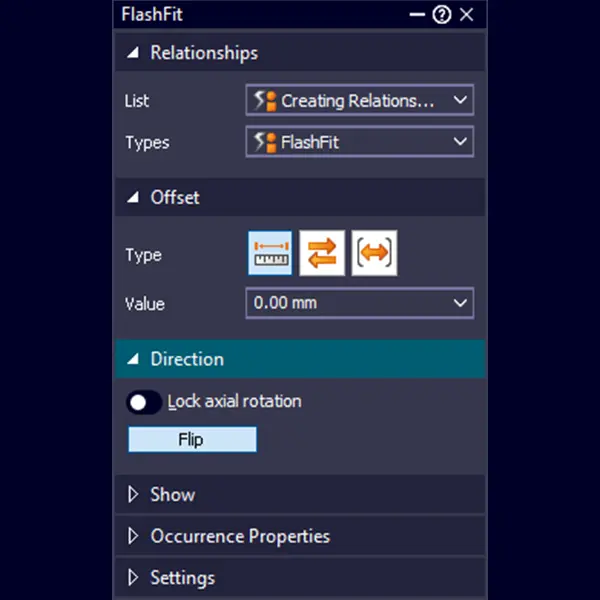
For example, Planar Align relationships are typically based on planar faces or reference planes, while Axial Align relationships use cylindrical or circular geometry. Match Coordinate System relies on coordinate systems defined in both the placement part and target part. The FlashFit workflow can consider different entity types during placement, including planar faces, cylindrical faces, linear edges, and points. These options can be adjusted in the Settings section of the Assemble CommandBar, allowing users to limit selection behavior to the geometry needed for the current placement task. This is especially useful for fasteners. FlashFit can allow circular edges on both the placement part and target part to be selected, making it easier to position a bolt into a hole.
Sequential Application & Its Impact
A single assembly relationship typically controls only part of a component's movement. After the first relationship is applied, the part may still be free to slide or rotate along one or more planes or axes, for example. Additional relationships are applied until the component is positioned as required. A useful way to think about this is through primary, secondary, and tertiary relationships:
- The primary relationship establishes the main contact, alignment, or location.
- The secondary relationship controls another key direction, axis, or orientation.
- The tertiary relationship removes any remaining unwanted movement or rotation.
For example, when placing a fastener, an Axial Align relationship may align the fastener with the hole axis. A Mate relationship may then seat the fastener head against the surface. If rotational orientation is not important, the "Lock axial rotation" option can reduce the number of relationships required to fully position the part. However, not every part should be fully positioned. Components that need to move, rotate, slide, or remain adjustable should retain the appropriate degrees of freedom. Solid Edge supports this through options such as unlocked rotation, floating offsets, range movement, and adjustable assembly behavior.
Types of Assembly Relationships
Solid Edge provides multiple relationship types for different positioning needs. Choosing the right relationship depends on the geometry being selected and the intended behavior of the part.
Mate
In general CAD terminology, a coincident relationship often means selected geometry occupies the same location or plane. In Solid Edge, the closest common relationship for bringing parts together is typically Mate. A Mate relationship positions selected geometry so components fit together in a mating condition. It is commonly used when one face must sit against another. Common uses include:
- Seating a cover on a housing
- Placing a bracket against a mounting plate
- Positioning two flat surfaces in contact
- Defining a fixed spacing between two faces
Axial Align
For aligning circular or cylindrical geometry, Solid Edge uses Axial Align. This relationship aligns cylindrical axes and is commonly used for parts such as bolts, pins, shafts, bushings, bearings, and washers. Typical uses include:
- Aligning a bolt with a hole
- Placing a shaft into a bearing
- Aligning a pin with a bore
- Centering round components on a shared axis
Axial Align relationships include a rotation option. "Lock axial rotation" prevents rotation around the aligned axis, which is useful when rotational orientation does not matter. Leaving the setting disabled will allow the part to rotate, which is useful for shafts or other components whose angular position will be controlled by another relationship.
Distance / Offset
Some Solid Edge relationships, including Mate and Planar Align, support offset values. Offsets are useful when components should not be directly touching or coplanar. Solid Edge supports three offset types:
- Fixed
- Float
- Range
A fixed offset uses a specific dimensional value. For example, two planar faces can remain aligned but separated by a defined distance such as 0.1". A floating offset is useful when orientation must be controlled, but a fixed dimensional value is not appropriate. For example, after applying an Axial Align relationship with rotation unlocked, a Planar Align relationship with a floating offset can help control rotational orientation without creating a conflicting fixed condition.
A range offset allows movement within a defined range. However, it should not be used as a substitute for geometric tolerances, because doing so can create over-constrained conditions and errors. This is helpful for scenarios such as a door swinging open and closed, or a hydraulic cylinder sliding in and out.
Angle
An Angle relationship controls angular orientation between selected geometry of components. It is used when a part must be positioned at a specific angle rather than simply mated or planar-aligned. Angle relationships are useful for:
- Angled brackets
- Hinged components
- Fixtures
- Tilted parts
- Rotational orientation control
If an Axial Align relationship is applied with rotation unlocked, an Angle relationship can be used to define the desired rotational position.
Tangent
A Tangent relationship positions surfaces so they touch tangentially. This is useful for curved contact conditions or mechanism-style interactions. Examples include:
- Rollers contacting tracks
- Cylinders touching planar faces
- Curved parts contacting other curved geometry
- Cam or rolling contact applications
Because FlashFit is focused on Mate, Planar Align, and Axial Align relationships, Tangent relationships are typically applied using the Traditional workflow.
Planar Align
A Planar Align relationship aligns planar faces or reference planes. It can be used to make surfaces coplanar or to maintain a defined planar orientation between parts. Planar Align is useful for:
- Aligning flat faces
- Maintaining planar orientation
- Positioning panels, plates, or covers
- Creating offset alignment conditions
- Controlling orientation after axial alignment
Planar Align relationships can also use fixed or floating offsets depending on the design requirement.
Other Specialized Relationships
Solid Edge also includes specialized relationships for more advanced positioning and motion behavior, including:
- Insert
- Connect
- Cam
- Path
- Parallel
- Gear
- Match Coordinate System
- Center-Plane
- Rigid Set
- Ground
The Insert option is commonly useful for fastener-style placement. When Insert is used along with Capture Fit, Solid Edge captures it as a combination of a Mate and an Axial Align relationship. Relationships such as Angle, Cam, Parallel, Path, and Tangent are generally handled through the Traditional workflow because FlashFit does not recognize them.
Repeating Components in Solid Edge Assemblies
Solid Edge provides several tools for placing repeated components without positioning each occurrence manually. The right approach depends on whether the new components need assembly relationships.
Patterning Components
The Pattern command copies one or more parts or subassemblies according to a pattern feature on a part or a pattern defined in a part or assembly sketch. Patterned components are positioned by the pattern rather than by assembly relationships. This is useful for repeated components such as fasteners that follow a rectangular, circular, or other predefined arrangement.
Clone Component vs. Duplicate Component
Duplicate Component positions copies relative to target components or coordinate systems. The duplicated components do not use assembly relationships and are grouped as a pattern in Assembly PathFinder.
Clone Component uses the original component's existing relationships and target face geometry to place new occurrences. It recreates those relationships on the cloned components, making it useful when repeated parts need to maintain the same relationship logic as the original. A simple rule is:
- Use Duplicate Component when relationship-free repeated placement is appropriate.
- Use Clone Component when the repeated components should recreate existing assembly relationships.
- Use Pattern when component placement should follow an existing geometric pattern.
- Use Capture Fit when the same relationship-based placement needs to be reused interactively.
Defining Assembly Relationships: Step-by-Step
1
Selecting Components to Assemble
The first step is identifying the component being placed and the target geometry it should relate to. In most cases, Solid Edge creates the relationship between the placement part and a part or subassembly already in the assembly. Solid Edge supports several workflows for positioning parts:
- FlashFit workflow
- Traditional workflow
- Reduced Steps workflow
- Capture Fit workflow
For users new to assembly modeling, FlashFit and the Traditional workflow provide a strong foundation before moving into more specialized placement workflows.
2
Using a Base Part as Reference
A stable assembly often begins with a base component that acts as the primary reference. This could be a frame, housing, mounting plate, machine base, or another foundational part. Using a consistent base part helps make the assembly easier to understand and manage. Other components can then be positioned relative to that base using relationships that reflect the design's functional intent. This base component is typically grounded. A Ground relationship can fix other components in place, but it should be used carefully. Grounded components do not update their positions when other parts are modified. For assemblies that need to update intelligently, maintained relationships are usually more appropriate.
3
Reusing Placement Logic
Capture Fit can be used when a part or subassembly is repeatedly placed using the same relationship logic. The command saves the relationships and faces used to position the component. When that component is placed again, the corresponding target faces can be selected, and Solid Edge can reuse the captured placement information.
For repeated placement where relationships should be recreated automatically on matching target geometry, Clone Component provides another option. Pattern and Duplicate Component are better suited for repeated placement that does not require assembly relationships.
Managing & Customizing Relationships
Relationship Options & Command Bars in Solid Edge
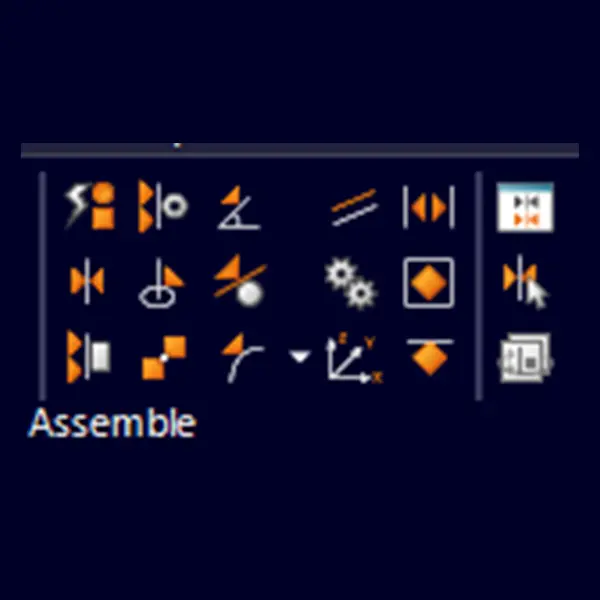
Assembly relationship options are available from the Assemble command bar, including the Relationship Types list and relationship-specific command bars. FlashFit settings and placement options are also controlled through the Assemble command bar.
FlashFit options allow users to specify which element types should be considered during placement, including planar faces, cylindrical faces, linear edges, and points. This helps tailor the command to the current task and reduce unwanted selections.
Visual Updates & Graphics Feedback
During FlashFit placement, the placement part can be moved or rotated into a more convenient position. To move the part, drag it with the cursor. To rotate it, press Ctrl while dragging. If relationships have already been applied, movement or rotation is limited to the remaining available degrees of freedom. This feedback helps users understand what movement has already been controlled and what freedom remains.
Editing, Suppressing, or Deleting Relationships
Assembly relationships can be viewed, modified, or deleted using Assembly PathFinder. This is the main tool for reviewing how components are assembled. When a new relationship conflicts with existing relationships, Solid Edge provides the Resolve Relationship Conflicts dialog box. This allows users to suppress conflicting relationships so the requested relationship can be created. The status of suppressed relationships is shown in the bottom pane of PathFinder. If the new relationship solves successfully, it is also added there.
Improve Engineering Productivity with Expert-Led Solid Edge Training
Best Practices in Assembly Relationships
Use Relationships That Match Functional Intent
Assembly relationships should reflect how the product actually works. For example:
- Use Axial Align for shafts, pins, fasteners, and holes.
- Use Mate for surfaces that physically seat against one another.
- Use Planar Align for aligned faces or planes.
- Use Angle when orientation must be controlled.
- Use Match Coordinate System for repeatable coordinate-based placement.
A part should not only look correct. It should behave correctly when the design changes.
Avoid Over-Constraints & Redundancy
Over-constraints occurs when too many relationships attempt to control the same movement or orientation. This can cause conflicts and errors. To avoid over-constraining parts:
- Apply only the relationships needed.
- Use "Lock axial rotation” when rotational orientation does not matter.
- Use floating offsets where fixed offsets would conflict.
- Do not use range offsets as geometric tolerances.
- Suppress or delete conflicting relationships instead of adding redundant ones.
- Test assembly behavior after design changes.
If a component is intended to move, do not fully position it.
Use the Right Tool for Repeated Components
Repeated placement does not always require individual assembly relationships. Use Pattern when placement should follow an existing part or sketch pattern. Use Duplicate Component when relationship-free placement relative to target components or coordinate systems is appropriate. Use Clone Component when matching target geometry should receive recreated assembly relationships. Use Capture Fit when the same relationship-based placement logic needs to be reused interactively. Choosing the right workflow can reduce repetitive work while keeping the assembly structure appropriate for future edits.
Use Relationship Order for Stability
A logical relationship order makes assemblies easier to edit and troubleshoot. A useful order is:
- Establish the main connection or alignment.
- Align key axes, faces, planes, or coordinate systems.
- Add offsets or angles if required.
- Decide whether rotation should be locked or unlocked.
- Review the relationship structure in Assembly PathFinder.
This approach helps maintain design intent while avoiding unnecessary relationships.
Advanced Considerations
Interoperability & Imported Assemblies
When assemblies are imported into Solid Edge from another CAD system, parts may be oriented correctly but may not contain Solid Edge assembly relationships. In this situation, the Assembly Relationship Assistant command can apply relationships between parts and subassemblies based on their current geometric orientation. This helps convert imported, relationship-free assemblies into assemblies that are easier to manage and edit in Solid Edge.
Optimizing Performance in Large Assemblies
In large assemblies, relationship creation and selection can become more time-consuming, especially when there are many active or overlapping parts. To work more efficiently:
- Use QuickPick to select the correct relationship feature in crowded areas.
- Limit FlashFit selection options to the element types needed.
- Use Capture Fit when the same relationship logic is used repeatedly.
- Use Clone Component when repeated components need the original relationships recreated on matching geometry.
- Use coordinate systems for repeatable placement.
- Avoid unnecessary or redundant relationships.
- Review relationship status in Assembly PathFinder.
- Suppress or resolve conflicting relationships promptly.
A clean relationship strategy improves assembly stability, simplifies troubleshooting, and makes large designs easier to maintain.
Conclusion
Assembly relationships in Solid Edge are essential for building accurate, stable, and editable assemblies. They define how parts and subassemblies are positioned, how they move, and how they respond when design changes occur.
Relationships such as Mate, Planar Align, Axial Align, Insert, Angle, Tangent, Cam, Path, Parallel, Gear, Match Coordinate System, Center-Plane, Rigid Set, and Ground provide the flexibility to model both fixed structures and moving mechanisms.
The most effective assemblies are not just visually correct. They are built with relationships that reflect real design intent. By selecting meaningful geometry, maintaining relationships where appropriate, avoiding unnecessary relationships, and choosing the right placement workflow for repeated components, Solid Edge users can create assemblies that are easier to modify, troubleshoot, and reuse.
Tools such as FlashFit, Capture Fit, Pattern, Duplicate Component, Clone Component, Assembly Relationships Manager, and Assembly Relationship Assistant help make those workflows more efficient when used for the right purpose.
Key Takeaways
-
Assembly relationships in Solid Edge define how parts and subassemblies are positioned, aligned, moved, and maintained as the design changes.
-
Selecting geometry that reflects the component’s real function helps create more stable and predictable assembly behavior.
-
Common relationships such as Mate, Planar Align, and Axial Align should be chosen based on the type of geometry being connected and the intended motion of the part.
-
Applying relationships in a logical sequence helps control the necessary degrees of freedom without over-constraining the assembly.
-
Fixed, floating, and range offsets provide different ways to control spacing and movement between components depending on the design requirement.
-
Tools such as FlashFit, Capture Fit, Clone Component, Duplicate Component, and Pattern can reduce repetitive work when placing components in an assembly.
-
Assembly PathFinder and Assembly Relationships Manager make it easier to review, edit, suppress, and troubleshoot relationships when conflicts occur.
-
Well-planned assembly relationships help preserve design intent, improve editability, reduce placement errors, and make both small and large assemblies easier to maintain over time.
